Your laptop’s built-in webcam was designed to be adequate, not impressive. It sits behind a small lens, uses a tiny sensor, and produces a grainy, flat image — especially in anything less than ideal lighting. In a world where video calls are a core part of professional life, your webcam quality is your first impression. Upgrading it is one of the fastest ways to look more professional and present better to colleagues, clients, and interviewers.
Why Built-In Webcams Fall Short
Laptop webcams typically use sensors in the 720p or 1080p range, but the lens quality, autofocus speed, and low-light performance are all severely compromised to save space and cost. The result:
- Grainy, noisy video in anything but bright daylight
- Slow or hunting autofocus that blurs your face when you move
- Flat, compressed dynamic range that washes out your features
- Fixed angle at whatever height your laptop lid sits
An external webcam doesn’t just improve resolution — it improves every part of the image pipeline.
Resolution: 1080p vs. 4K
1080p (Full HD) is the standard for professional video calls. Most conferencing platforms — Zoom, Teams, Google Meet — stream at 1080p or lower. A good 1080p webcam will look significantly better than a bad 4K webcam because sensor quality, lens quality, and processing matter more than raw resolution.
4K webcams are useful if you’re creating video content, recording tutorials, or streaming, where the full resolution is captured and can be exported. For pure video calling, a high-quality 1080p is the better value.
Autofocus and Face Tracking
Modern webcams offer AI-powered face tracking that keeps you centered in the frame even as you move around. This is genuinely useful if you tend to move while talking, reference documents off-screen, or stand during calls. Look for “AI face tracking” or “auto framing” in the product specs.
Standard autofocus simply keeps the image sharp as you move closer or further from the camera. Both are preferable to fixed-focus webcams that blur when you lean forward.
Field of View
- 65–78° FOV: Standard for individual calls. Frames one person cleanly without showing too much of the room behind you.
- 90°+ FOV: Useful for capturing a wide space — conference rooms or if you want to show a whiteboard. Too wide for solo calls creates a fish-eye effect.
For solo home office use, 65–78° is ideal.
Low-Light Performance
If your home office lighting isn’t perfect — and most aren’t — low-light performance is critical. Look for webcams that advertise “light correction,” “HDR,” or a large aperture (f/2.0 or lower). Some webcams, like Logitech’s higher-end models, include dedicated light correction algorithms that significantly improve image quality in dim conditions.
The single best improvement you can pair with a webcam: a ring light or desk lamp positioned behind your screen aimed at your face. Good lighting transforms any webcam.
Microphone: Webcam vs. Dedicated
Most webcams include built-in microphones. They range from barely acceptable to genuinely good. For casual calls, a webcam mic is fine. For frequent calls, long meetings, or any recorded content, a dedicated USB microphone or the headphone mic from a noise-canceling headset will outperform any webcam mic.
If you’re buying a webcam primarily for calls, audit your current microphone situation first — a better mic often has more impact on the other person’s experience than a better camera.
Privacy Shutter
A physical privacy shutter that covers the lens when not in use has become a standard feature on quality webcams — and for good reason. It eliminates any concern about accidental activation and provides clear visual confirmation the camera is off. This is a small feature that matters more the more you use the webcam.
Mounting Options
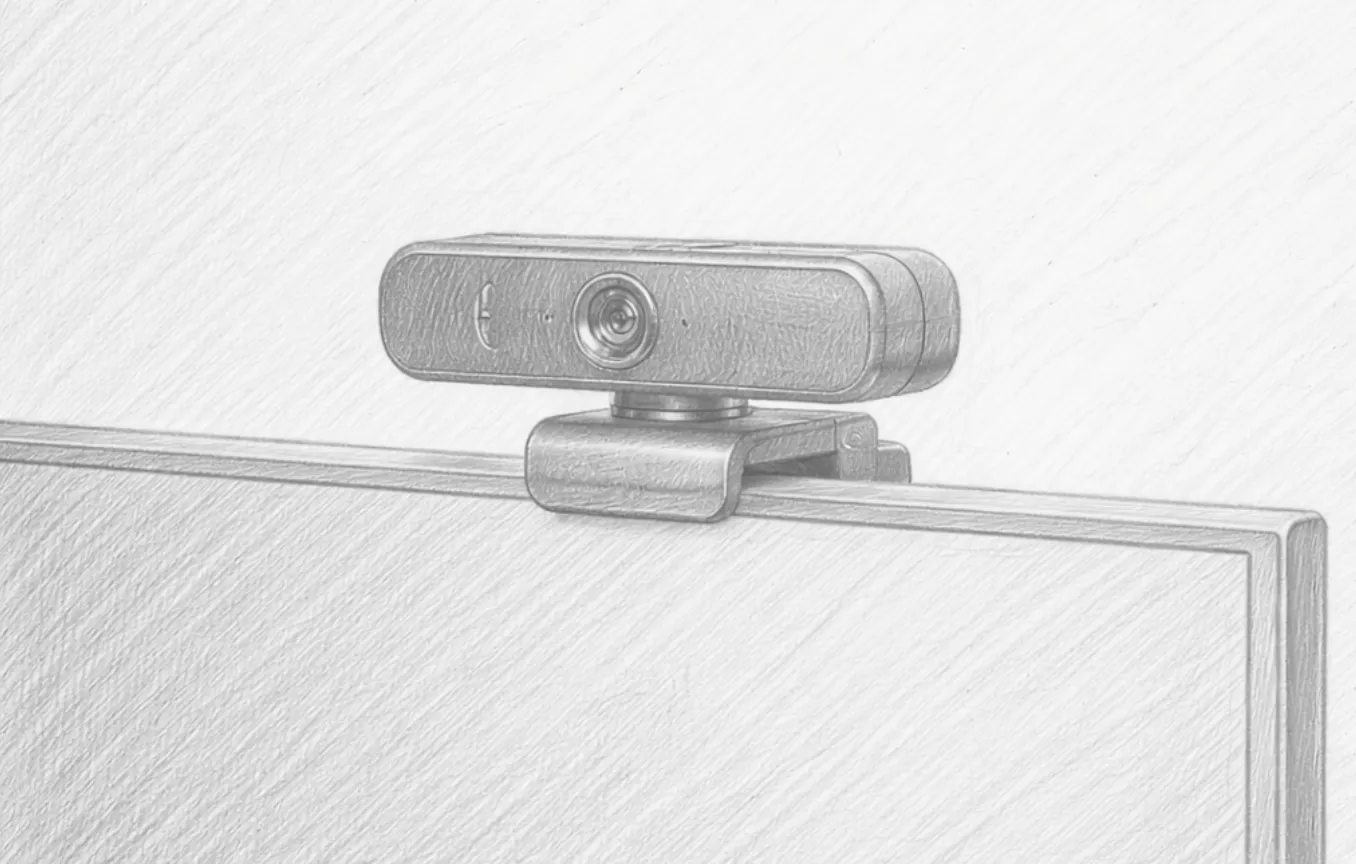
Most webcams clip to the top of a monitor. Verify the clip mechanism is sturdy and fits your monitor’s top thickness. Some webcams also include a tripod mount thread (¼-20), which allows you to mount them on a small tripod for even more precise angle control — useful if you prefer to have the camera at eye level from a different position than your monitor top.
The Upgrade That Changes Calls
If you’ve ever been on a call where someone else’s video was noticeably crisp and well-framed while yours looked like it was shot through frosted glass, you know the difference a quality webcam makes. For remote workers who spend hours on video calls per week, this is one of the most noticeable quality-of-life upgrades in the entire home office toolkit.
Recommended Products
Top webcams across different needs and budgets:
- Logitech C920x HD Pro Webcam — The most popular home office webcam. 1080p at 30fps, dual built-in mics, automatic light correction, and a privacy shutter. A proven, reliable workhorse.
- Logitech StreamCam (1080p 60fps) — Smoother motion, USB-C, and AI face tracking. A step up for frequent callers and content creators.
- 4K Webcam for Content Creators — Browse highly rated 4K options if you’re recording video or streaming alongside calling.
As an Amazon Associate, we earn from qualifying purchases.