One monitor is a window. Two monitors are a workspace. The productivity case for a dual monitor setup has been studied extensively, and the results consistently point in the same direction: more screen real estate translates into measurably better performance for most knowledge work tasks. If you’ve been working from a single screen, this guide will walk you through everything you need to set up a dual monitor configuration that actually works.
The Productivity Case for Two Screens
A University of Utah study found that dual monitor users completed tasks 44% faster than single monitor users on comparable work. A Jon Peddie Research report found that adding a second monitor increases productivity by an average of 42%. These aren’t marginal gains.
The reason is mechanical: most knowledge work requires referencing one thing while working on another. Email open while drafting a response. Research open while writing. Spreadsheet open while updating a presentation. On a single monitor, every reference requires a tab switch, which breaks focus and loses your visual context. On two monitors, both are visible simultaneously.
Layout Options
Side by Side (Horizontal)
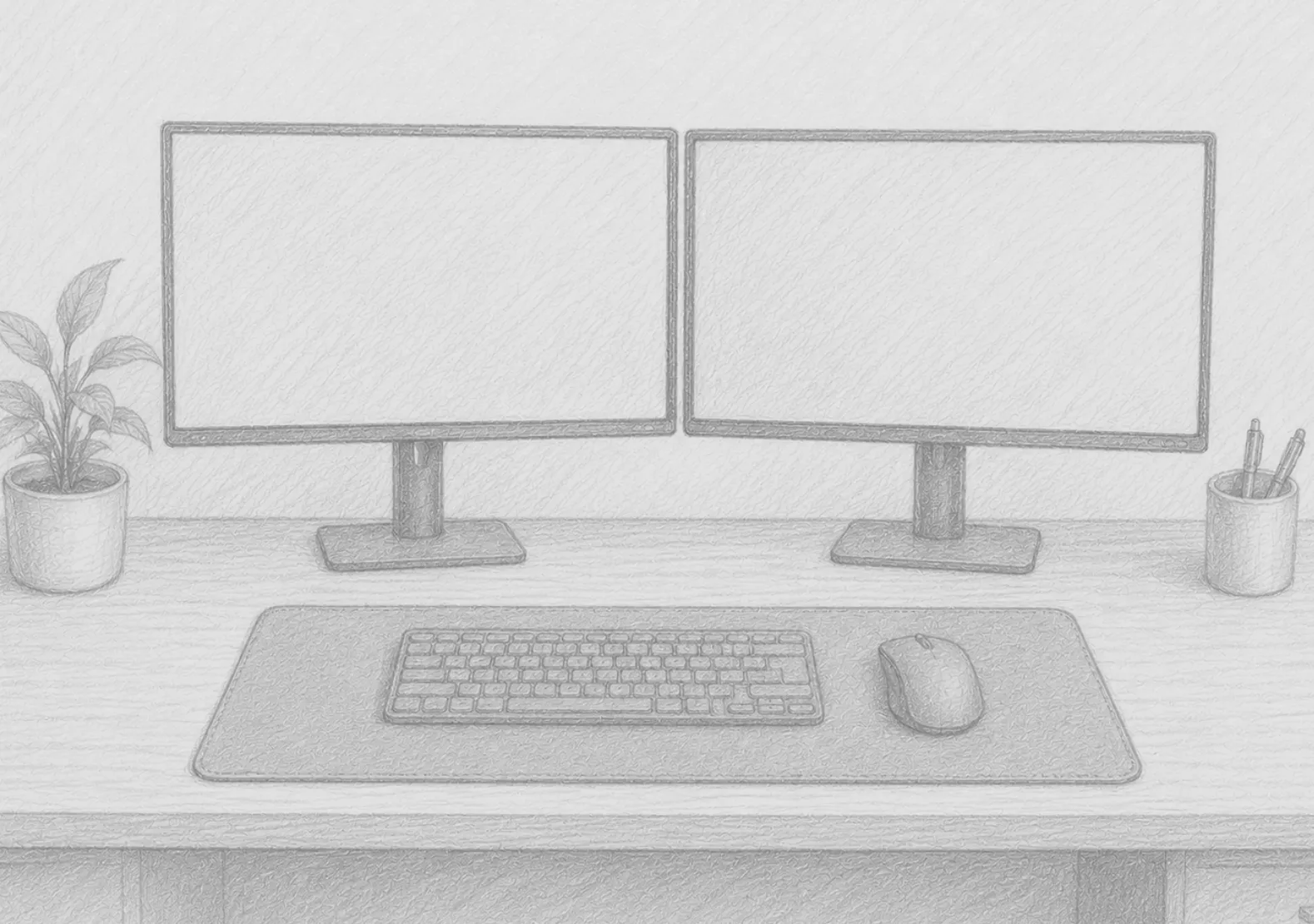
The most common configuration. Two monitors at the same height, side by side, with the primary monitor centered on your body axis and the secondary slightly to one side. Best for: coding, writing, spreadsheets, content work.
Stacked (Vertical)
One monitor on the desk, one mounted above it. Less common but useful for specific workflows — keeping a chat or social media monitor above the primary work monitor, for example. Requires a dual vertical monitor arm.
Portrait + Landscape
One monitor in standard landscape orientation, one rotated 90° to portrait. The portrait monitor is excellent for reading long documents, code, email threads, or any content that scrolls vertically. Surprising how useful this is once you try it.
Matching Your Monitors
Should both monitors match?
Ideally, yes — matching monitors have the same color profile, brightness, and resolution, which means your eyes don’t have to adjust when glancing between them. In practice, many people use a primary monitor they already own and add a secondary. Mismatched monitors work fine; just try to match brightness and color temperature settings manually.
Size and resolution
A common combination is a 27” 1440p primary monitor with a 24” 1080p secondary. The primary gets the most visual attention; the secondary is reference territory. Both should sit comfortably within a head turn, not require neck rotation.
Refresh rate
For work use, 60Hz on both monitors is perfectly sufficient. Higher refresh rates (120Hz, 144Hz) are primarily relevant for gaming or video editing.
Positioning for Ergonomics
Dual monitor ergonomics require more thought than single-monitor setups:
- Primary monitor: Directly in front of you, at eye level, arm’s length away
- Secondary monitor: Adjacent to the primary, as close to the same height as possible, angled slightly inward (10–20 degrees) toward your eye line
- Avoid placing the secondary at 90°: Frequent head rotation to 90 degrees causes neck fatigue rapidly. The secondary should be within comfortable eye movement range, not full head turns.
If you use both monitors equally, center them both in front of you — one on each side of your midline. If one is clearly primary, center that one.
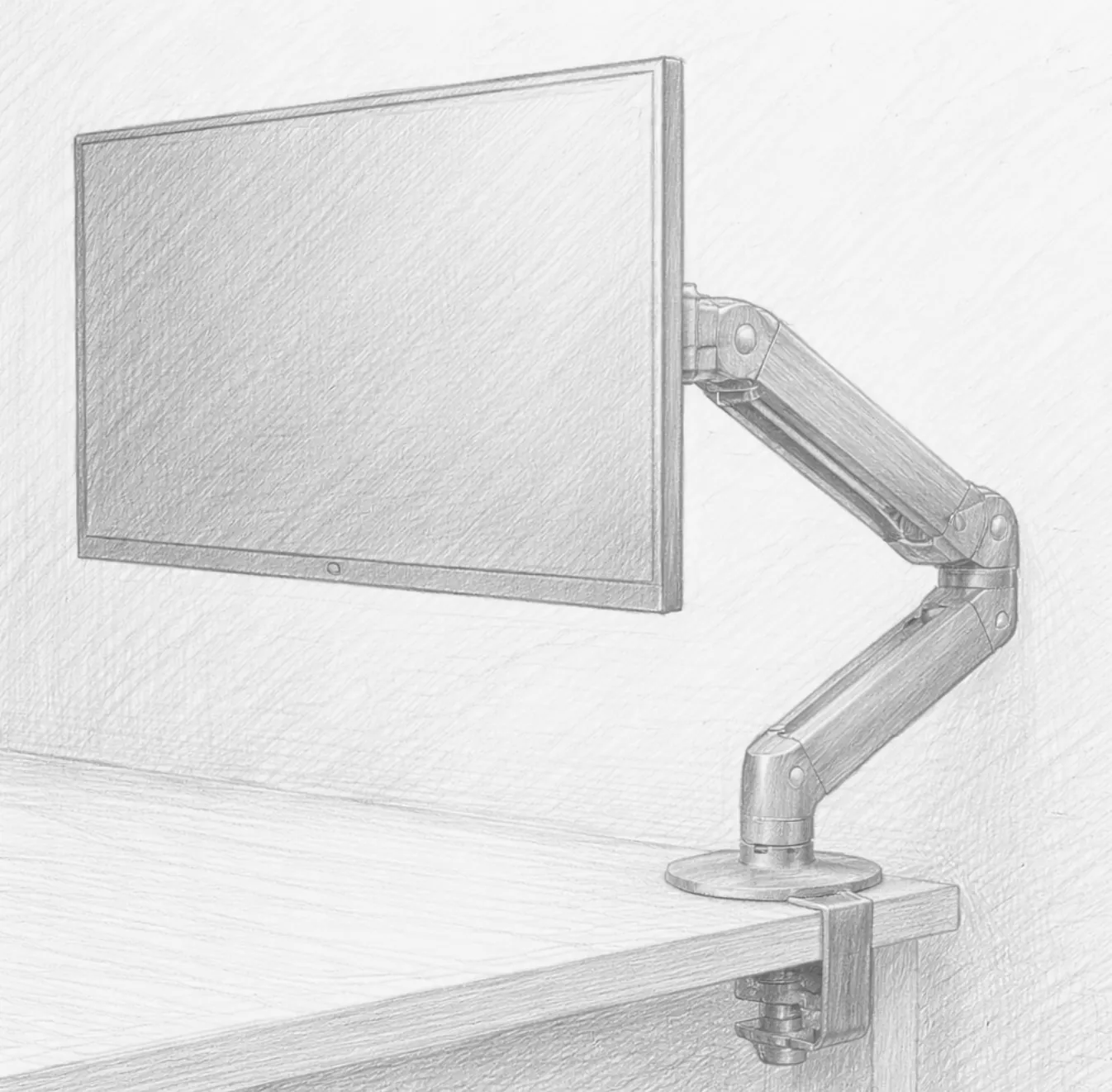
The Role of a Dual Monitor Arm
A dual monitor arm is almost essential for this setup. It allows you to:
- Align both monitors at exactly the same height
- Position them at the optimal angle to each other
- Free up the desk footprint of two monitor stands
- Easily adjust the configuration when needed
A single-clamp dual arm takes up one point of contact on your desk and holds both monitors independently. Most support monitors up to 27–32” per arm.
Connecting Two Monitors to a Laptop
Most modern laptops support one external monitor natively. For two external monitors, you typically need one of the following:
- A USB-C hub or docking station with dual HDMI outputs
- A Thunderbolt dock (the most reliable option for MacBooks)
- A DisplayLink adapter (works via USB, slightly more complex setup)
Check your laptop’s supported display output before purchasing. Some laptop GPUs support dual external displays; others (including some MacBook Air models) do not without a special adapter.
Software for Window Management
Two monitors without good window management software is chaos. Recommended tools:
- Windows: PowerToys FancyZones (free) or DisplayFusion — snap windows into defined zones across both screens
- Mac: Magnet or Rectangle (both affordable) — keyboard shortcuts to snap windows to exact positions
These tools let you create a consistent layout so you’re not rearranging windows from scratch every session.
Is a Second Monitor Right for You?
If your work primarily involves a single application — video editing in one full-screen program, for instance — a second monitor matters less. But for any work that involves cross-referencing, communicating while working, or managing multiple information streams, the second screen pays for itself very quickly in recovered time and reduced mental friction.
Recommended Products
Everything you need for a dual monitor setup:
- 27” 1440p IPS Monitor (Primary) — The sweet spot for a primary home office monitor. 1440p at 27” hits the right pixel density without requiring display scaling.
- Dual Monitor Arm — A single-clamp dual arm puts both screens at exactly the same height and frees up your desk surface completely.
- USB-C Docking Station with Dual HDMI — Anker’s 8-in-1 dock supports dual monitor output, Ethernet, and power delivery through a single USB-C cable to your laptop.
As an Amazon Associate, we earn from qualifying purchases.