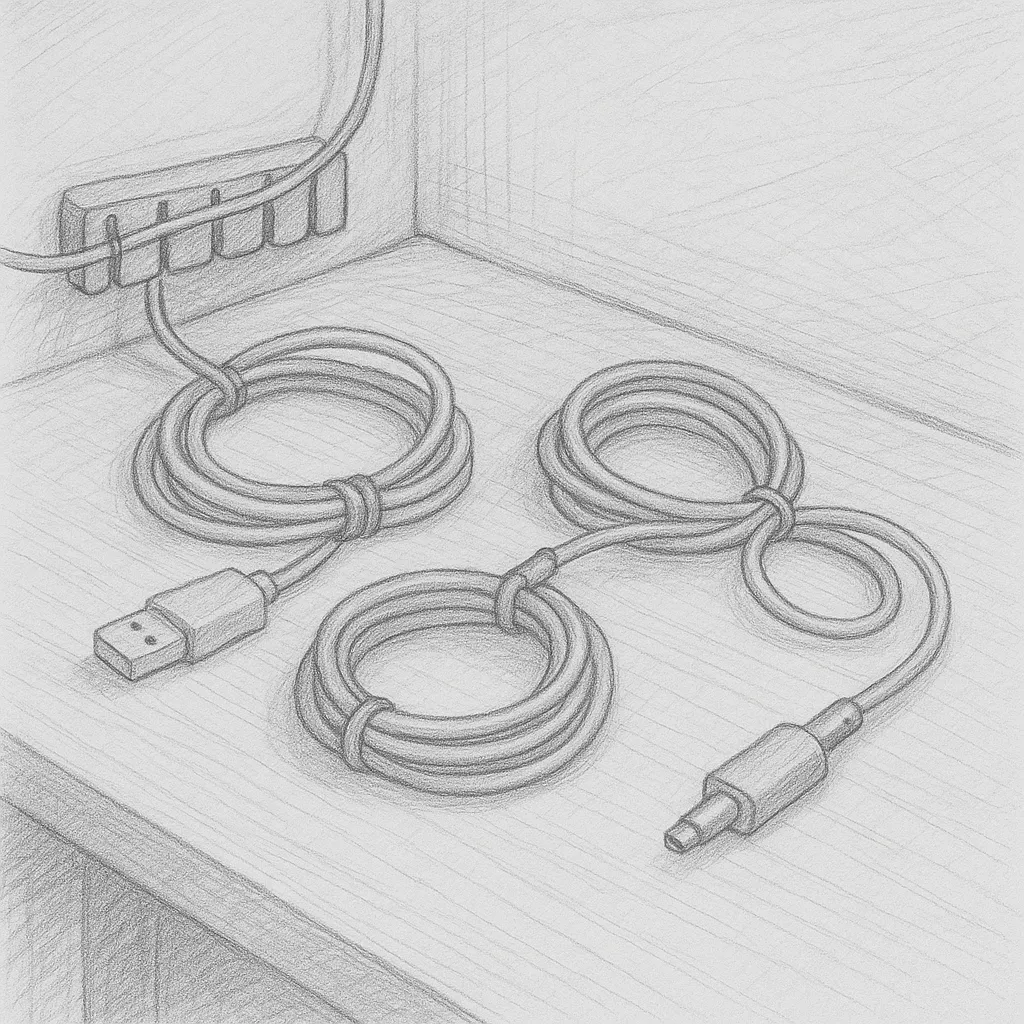
If you work from a laptop, your daily setup ritual probably looks something like this: plug in your monitor cable, plug in your keyboard USB dongle, plug in your mouse, plug in your phone charger, plug in your ethernet cable, and finally plug in power. Every morning. Every evening in reverse.
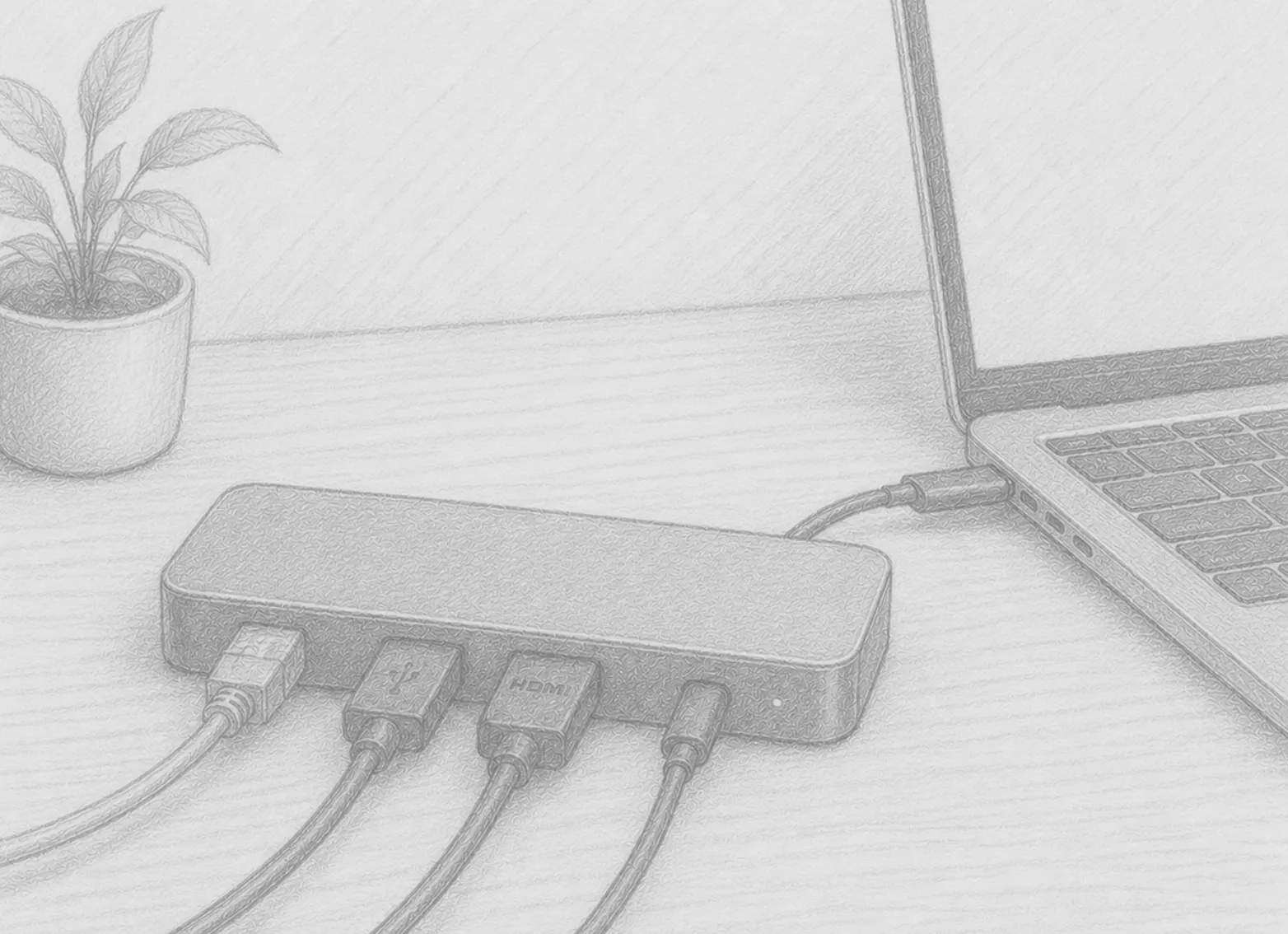
A docking station eliminates every one of those steps. One USB-C cable connects your laptop to your entire desk — monitors, peripherals, internet, and power — in a single click. It’s a small change that makes an outsized difference to the daily experience of working from home.
What Is a Docking Station?
A docking station (or dock) is a hub that connects to your laptop via a single cable and provides multiple ports: HDMI or DisplayPort outputs for monitors, USB-A and USB-C ports for peripherals, an ethernet port for wired internet, an SD card slot, an audio jack, and power delivery to charge your laptop — all simultaneously.
The result: your entire desk becomes a single-cable connection. Laptop arrives, one cable clicks in, everything is live. Laptop leaves, one cable disconnects, everything goes with it.
This matters most for people who move between home and office, or who frequently take their laptop away from their desk — the dock makes the transition between “desk mode” and “travel mode” seamless.
USB-C Dock vs. Thunderbolt Dock: What’s the Difference?
This is the most important purchasing decision when buying a dock.
USB-C docks use the USB-C standard (USB 3.1 or USB 3.2). They’re universally compatible with any laptop that has a USB-C port and are the right choice for most Windows laptop users. Bandwidth is sufficient for dual 1080p or single 4K display output alongside peripherals.
Thunderbolt docks use the Thunderbolt 3 or 4 protocol, which runs over the same USB-C connector but delivers dramatically higher bandwidth. Thunderbolt 4 provides up to 40Gbps vs. USB 3.2’s 20Gbps maximum. Thunderbolt docks support:
- Dual 4K displays at 60Hz
- Faster data transfers to external SSDs
- Daisy-chaining additional Thunderbolt devices
- More reliable power delivery (up to 100W)
Thunderbolt docks are required for MacBook users who want dual external displays, and for anyone using high-resolution monitors at high refresh rates. They are also significantly more expensive ($150–$350 vs. $40–$120 for USB-C).
How Many Monitors Can a Dock Support?
This depends on both the dock and your laptop:
- Single external monitor: Any USB-C dock with HDMI or DisplayPort handles this easily
- Dual external monitors: Requires Thunderbolt or a USB-C dock with DisplayLink technology. Note: some laptops (including most MacBook Air models) only natively support one external display — a Thunderbolt dock or DisplayLink adapter is needed for two
- Triple monitor setups: Uncommon for home office use, but possible with high-end Thunderbolt docks
Always check your laptop’s display output specification before purchasing a dock expecting dual monitor support.
Power Delivery: Charging Through the Dock
Most quality docks include Power Delivery (PD) — they charge your laptop through the same USB-C cable that carries all the data. This is one of the most convenient aspects of a dock: no separate power brick for your laptop.
Check the wattage. A 15” MacBook Pro requires 96W. An ultrabook might need 45–65W. Ensure the dock’s PD rating matches or exceeds your laptop’s charging requirement. A dock that delivers less than your laptop needs will charge slowly or not at all under load.
Ethernet: The Underrated Dock Feature
One of the most underappreciated dock features is the ethernet port. Wi-Fi is convenient but inconsistent — susceptible to interference, congestion, and signal variation. A wired ethernet connection through your dock provides:
- More stable video call quality (fewer drops and artifacts)
- Faster and more consistent upload/download speeds
- Lower latency for any real-time applications
If your router is within cable run distance of your desk, a ethernet dock makes wired internet effortless. No separate ethernet adapter needed.
Desk Setup With a Dock
Docks work best when positioned intentionally on the desk. A few setups:
- Under the desk: Hides the dock and all its cables. The only cable visible on the desk surface is the single USB-C cable to your laptop.
- Behind the monitor: Out of sight, close to where the monitor cable plugs in.
- On the desk surface: Easy access to SD card slots and USB ports for frequent swapping.
Most people who buy a dock end up hiding it — the point is the single-cable experience, not the dock itself.
When a Simple USB-C Hub Is Enough
A full docking station is overkill if you only need a couple of extra ports. A small USB-C hub (5-in-1 or 7-in-1) that adds HDMI, USB-A, and power pass-through handles most single-monitor setups at a much lower cost. Docking stations are the right choice when you’re running dual monitors, need ethernet, have many peripherals, or want the full single-cable experience.
Recommended Products
Top docking stations for home office use:
- Anker 8-in-1 Thunderbolt/USB-C Dock — Dual HDMI, USB-A, USB-C data, Ethernet, and 85W power delivery. One of the most trusted docks for home office setups.
- Thunderbolt 4 Dock (for MacBook / High-Performance) — For MacBook users or anyone needing dual 4K display support and maximum bandwidth.
- Budget USB-C Hub (Single Monitor Setup) — Anker’s compact 5-in-1 USB-C hub handles single monitor setups with 4K HDMI, USB-A, and power delivery at a fraction of dock prices.
As an Amazon Associate, we earn from qualifying purchases.